C920s or Brio 500: choose a webcam for your actual meeting setup
Choose C920s for a documented USB-A connection and fixed 78° view; consider Brio 500 for USB-C, selectable framing and its software-dependent features. Both specify 1080p at 30 fps.
Updated:
Start with the connection and the view you need
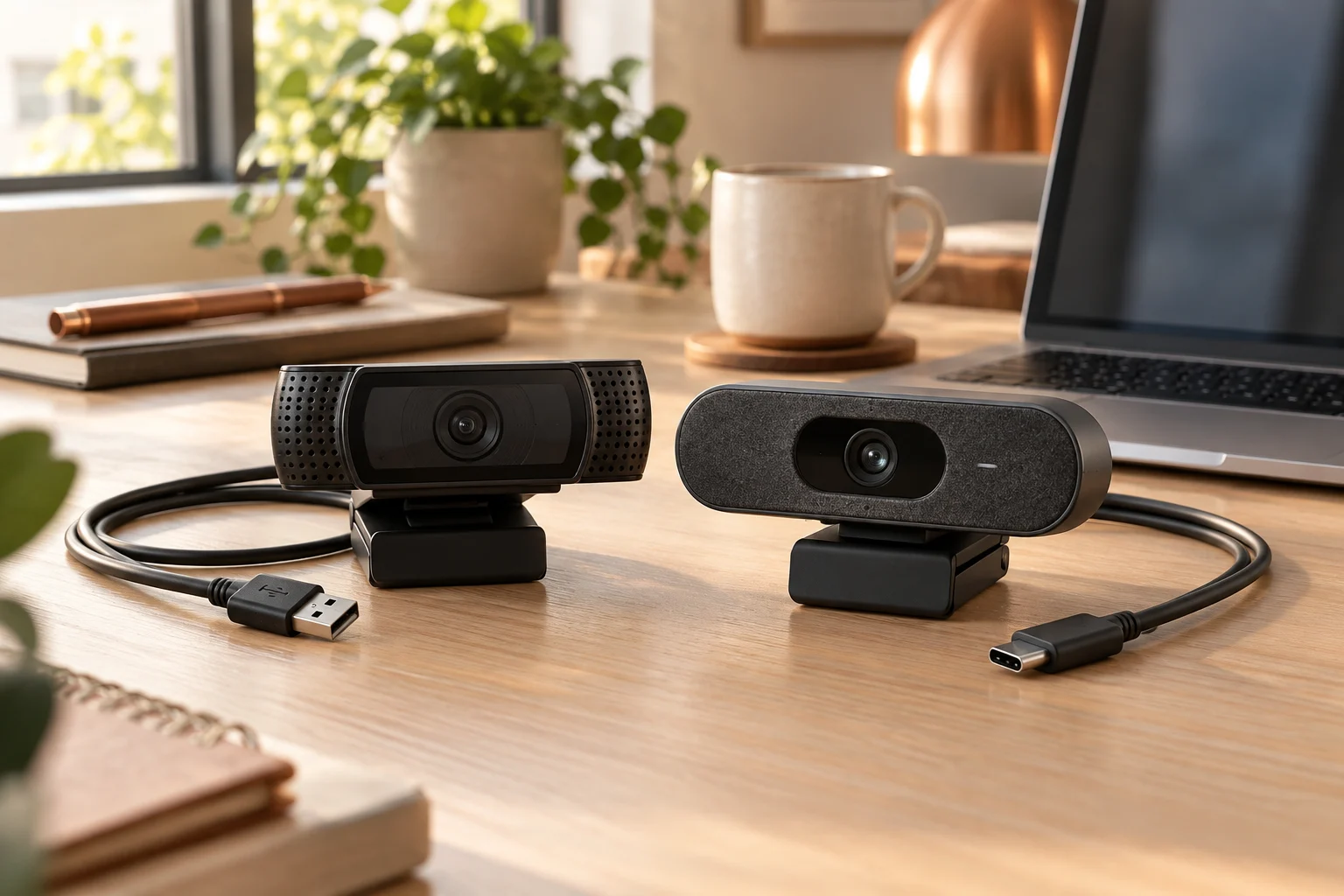
C920s and Brio 500 both specify 1080p video at 30 frames per second, so a Full HD label does not decide between them. The practical differences are the host connector, framing options and the features available with your operating system. C920s specifies USB-A and a fixed 78° diagonal field of view. Brio 500 specifies USB-C and 90°/78°/65° options. Choose the path that your actual computer and meeting arrangement support; neither manufacturer's specification proves better image quality in your room.
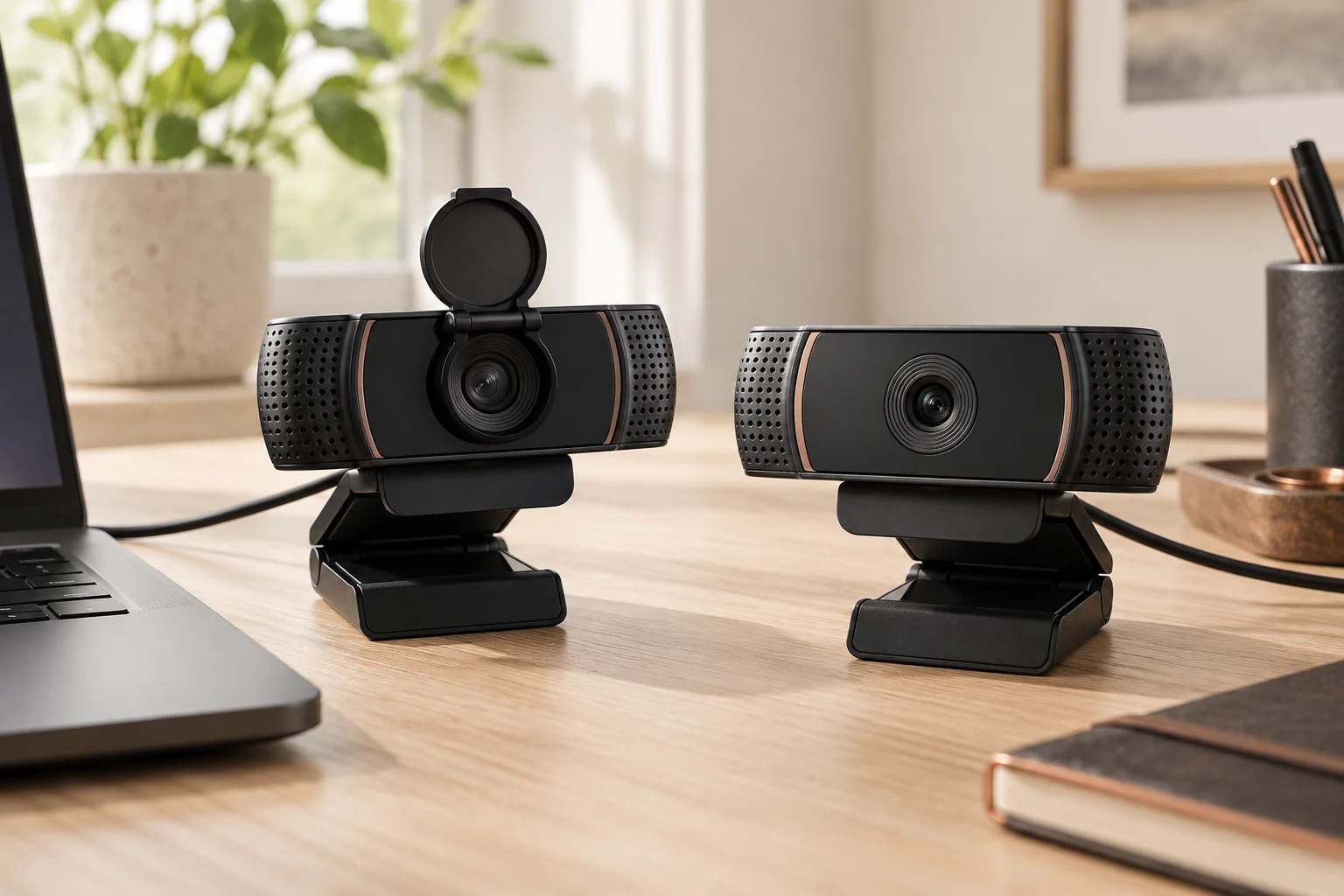
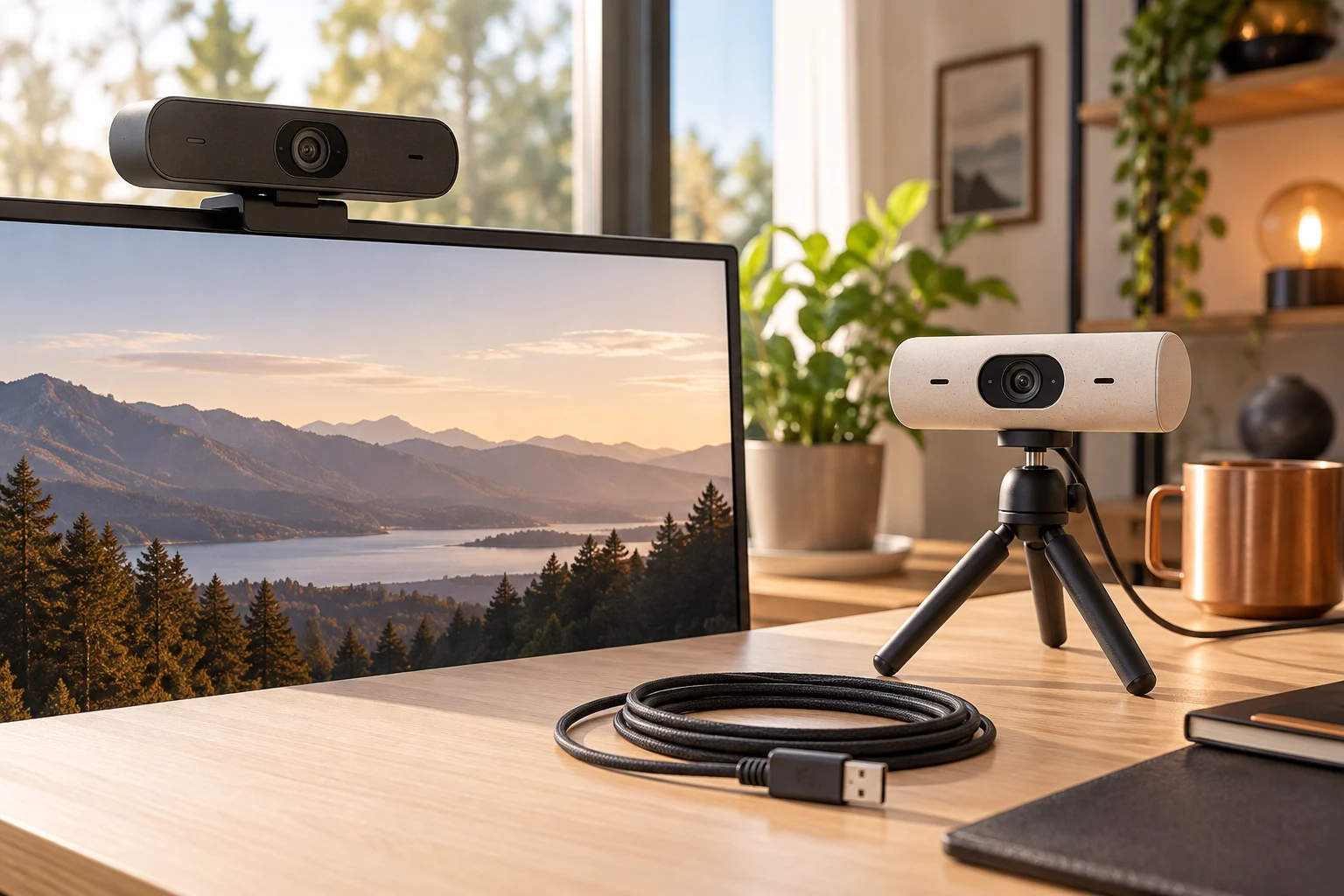
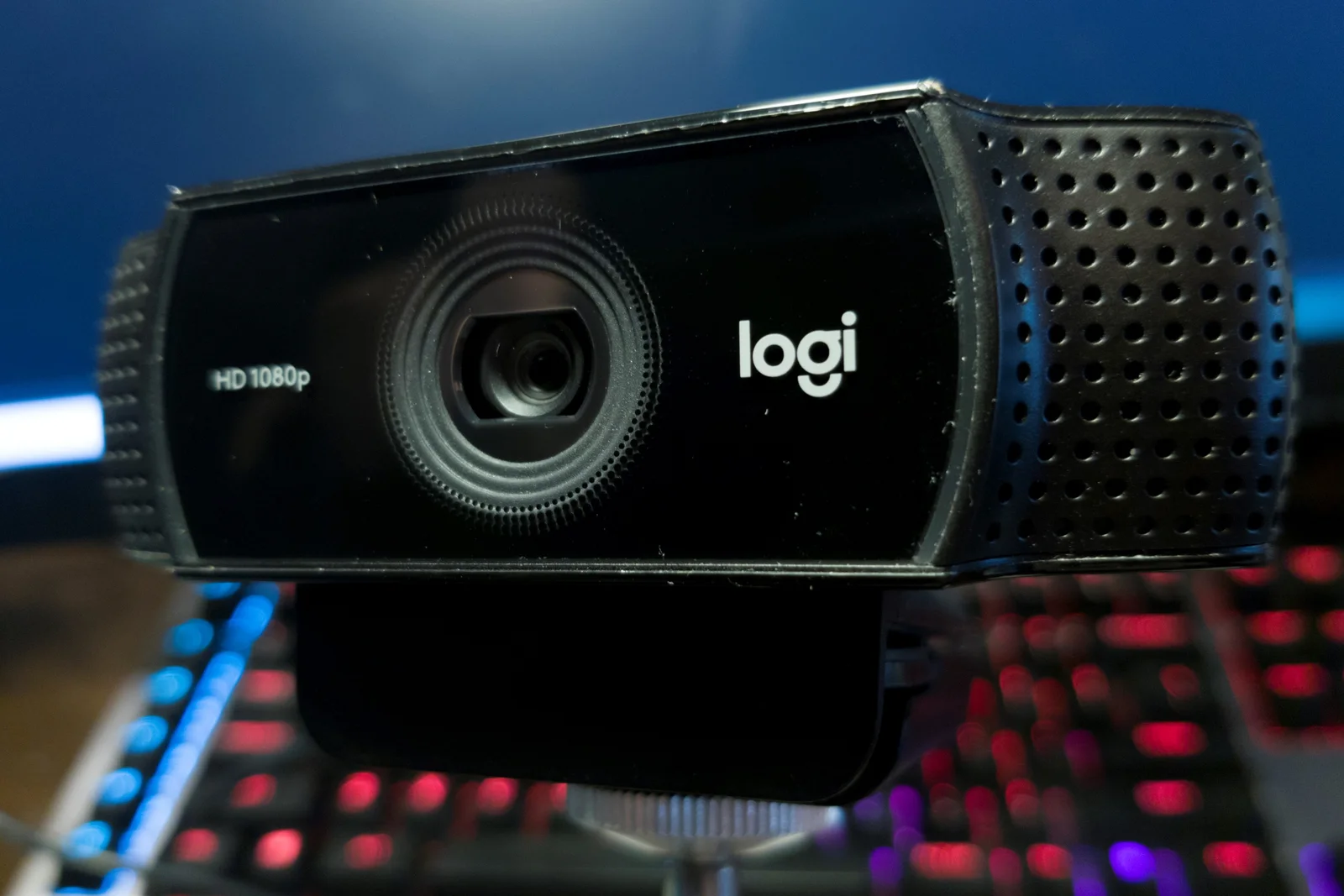
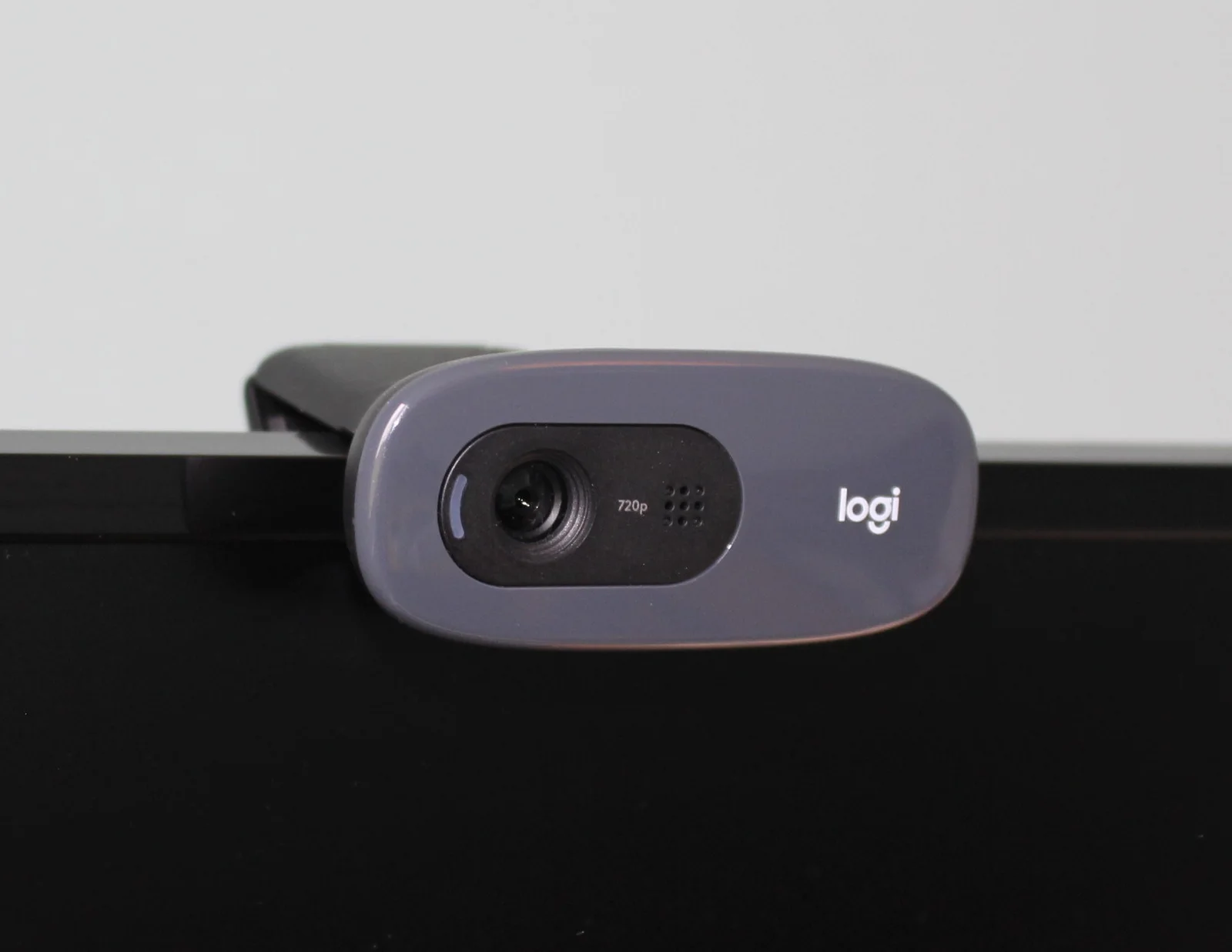
This comparison uses the US manufacturer pages checked on 29 October 2026. It does not claim independent camera testing, a live deal or current seller stock. The archival body photographs below identify actual equipment and physical arrangements; their captions distinguish those objects from the comparison models.
Compare the documented modes and included hardware
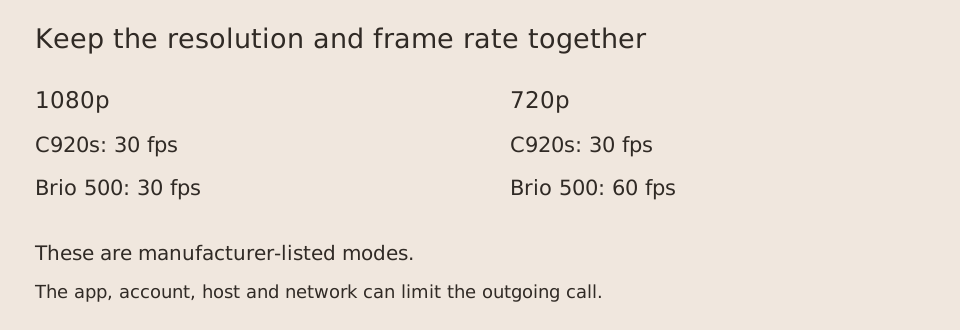
The resolution and frame-rate pairs belong together. Brio 500's 60 fps entry is for 720p; its 1080p entry remains 30 fps. A calling application can also impose a lower outgoing resolution or rate. Confirm what the application actually sends before paying for a specification that your calls will not use.
Scroll the table sideways to view all model columns.
| Documented field | Logitech C920s | Logitech Brio 500 |
|---|---|---|
| Host connector | USB-A | USB-C plug-and-play |
| 1080p mode | 30 fps | 30 fps |
| 720p mode | 30 fps | 60 fps |
| Diagonal field of view | Fixed 78° | 90°/78°/65° |
| Focus | Autofocus | Autofocus |
| Microphones | Stereo; stated range up to 1 m | Stereo; stated range up to 1.22 m |
| Privacy cover | Supplied privacy shutter | Integrated privacy shutter |
| Cable length | 1.5 m | 1.5 m |
| Mount | Fixed universal mounting clip; tripod-ready | Detachable universal mounting clip |
| Automatic framing | No RightSight feature asserted by this guide | RightSight requires Logi Tune; Tune unavailable for ChromeOS |
Check the computer, adapter and application as one path
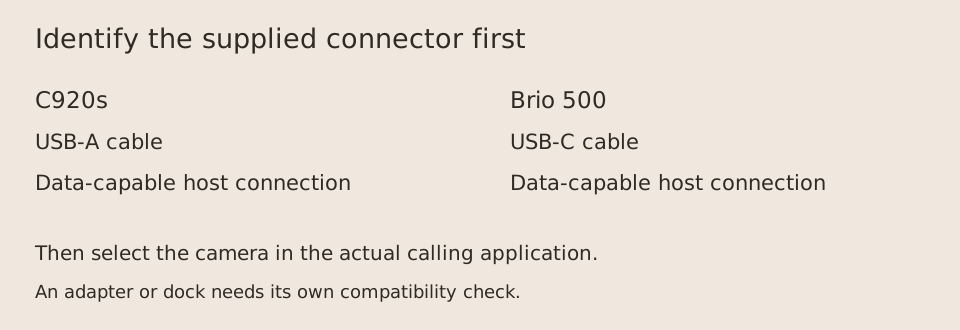
Inspect the available port rather than relying on the laptop's marketing name. An existing USB-A socket makes C920s a straightforward physical match; an available USB-C data port matches Brio 500's supplied connector. If an adapter, dock or hub is necessary, verify its USB data support and reserve enough power and bandwidth for the attached devices. Adding an adapter is a separate purchase and compatibility check, not a feature included in either webcam specification.
Select the external camera explicitly in the meeting application's camera menu, then check the preview and a test call. The computer may otherwise keep using its built-in camera. The specification table describes the camera's listed modes; it does not guarantee that every account, app, network or host can transmit those modes.
If Windows 11 detects the camera but an app cannot use it, open Settings → Privacy & security → Camera. Review Camera access and the permission for the intended Store app. A browser or other desktop calling app also needs Let desktop apps access your camera. These desktop permissions are controlled as a group, not with an individual switch for each desktop app. If Camera access is locked, ask the device administrator rather than buying another webcam.
A camera that works in one app but fails in another points to a different next check from a camera that is unavailable everywhere. Close other applications using it, reopen the intended app and reselect the external camera. If the setting reports an organization policy restriction, contact IT. The linked Microsoft troubleshooting guide covers those cases; replacing C920s with Brio 500 does not itself remove an operating-system permission or policy restriction.
Separate the basic picture from optional software
Brio 500's manufacturer page states that RightSight auto-framing requires downloading and using Logi Tune, which is unavailable for ChromeOS. Basic camera compatibility and the complete optional feature set are therefore separate checks. A compatible operating-system name alone does not establish access to every advertised control.
C920s is the simpler choice when a fixed view is sufficient and USB-A is already available. Brio 500 is a more relevant candidate when selectable framing, its integrated shutter or its documented software features solve a specific problem for your supported setup. These are conditional choices from cited documents, not a universal best-webcam ranking.
Identify the exact model and inspect the mount
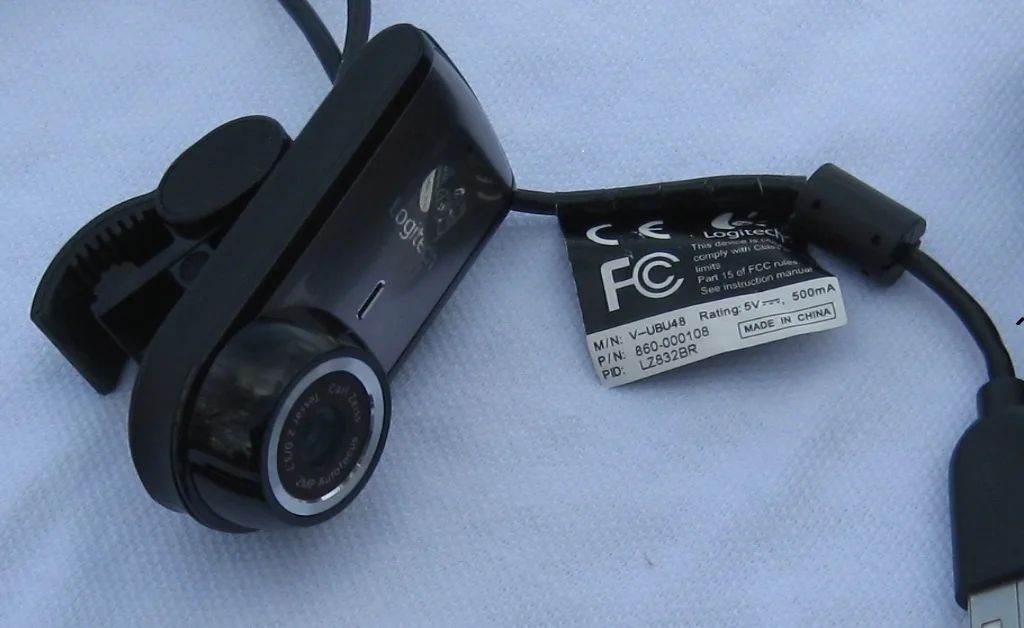
Check the product label and seller's complete model designation, especially when C920, C920s and other C920-family names appear in a listing. This article's table is for C920s. The older C920 photographed here is explicitly identified and does not establish the contents of a C920s seller bundle. Ask the seller to confirm any included cover, adapter and cable before ordering.
Test whether the clip can sit securely without covering the screen, damaging the bezel or interfering with the laptop lid. Neither an archival clip photograph nor the word universal proves fit for an unusually thin display. Position the camera before choosing a tighter view: cropping or digital zoom cannot recover the surrounding area that the camera never captured.
Make a complete purchase decision
Choose after checking four concrete items: the exact model, the USB path, the required view and the software features you can actually use. Keep any necessary adapter, mount and delivery charge in the same quote. Compare the seller's current return eligibility and responsibility for return shipping rather than assuming every retailer follows the manufacturer's own store policy.
For an existing camera, run the preview and a short meeting test before replacing it. Check lighting, camera selection and the physical connection first. If 1080p at 30 fps already meets the actual application requirement, another camera with the same headline mode needs a more specific reason for purchase. Save the chosen model page and the seller's conditions with the date so that a changed listing does not erase the basis of your decision.